
Certbot is part of EFF’s effort to encrypt the entire Internet. Secure communication over the Web relies on HTTPS, which requires the use of a digital certificate that lets browsers verify the identity of web servers (e.g., is that really google.com?). Web servers obtain their certificates from trusted third parties called certificate authorities (CAs). Certbot is an easy-to-use client that fetches a certificate from Let’s Encrypt—an open certificate authority launched by the EFF, Mozilla, and others—and deploys it to a web server.
Obtaining an SSL Certificate
To obtain an SSL certificate with Let’s Encrypt, you will need to install client Certbot on your server. In our case we will use default Ubuntu package repositories to install Certbot.
Apache:
sudo apt install certbot python3-certbot-apacheNginx:
sudo apt install certbot python3-certbot-nginxRun this command to get a certificate and have Certbot edit your apache configuration automatically to serve it, turning on HTTPS access in a single step.
Apache:
sudo certbot --apache -d example.com -d www.example.comNginx:
sudo certbot --nginx -d example.com -d www.example.comTest automatic renewal
The Certbot packages on your system come with a cron job or systemd timer that will renew your certificates automatically before they expire. You will not need to run Certbot again, unless you change your configuration. You can test automatic renewal for your certificates by running this command:
sudo certbot renew --dry-runYou can add this command in cronjob running crontab -e:
@monthly certbot renew --post-hook "systemctl reload nginx"Or for apache:
@monthly certbot renew --post-hook "systemctl reload apache"Testing the HTTPS Connection
Next step is to confirm that your website is properly configured to use new certificate and is accessible over HTTPS. To do this, navigate to your website over web browser, making sure to specify the https:// protocol when entering your URL.
Always check your SSL grade and follow some of the best practice to have higher level of security.
https://www.ssllabs.com/ssltest/
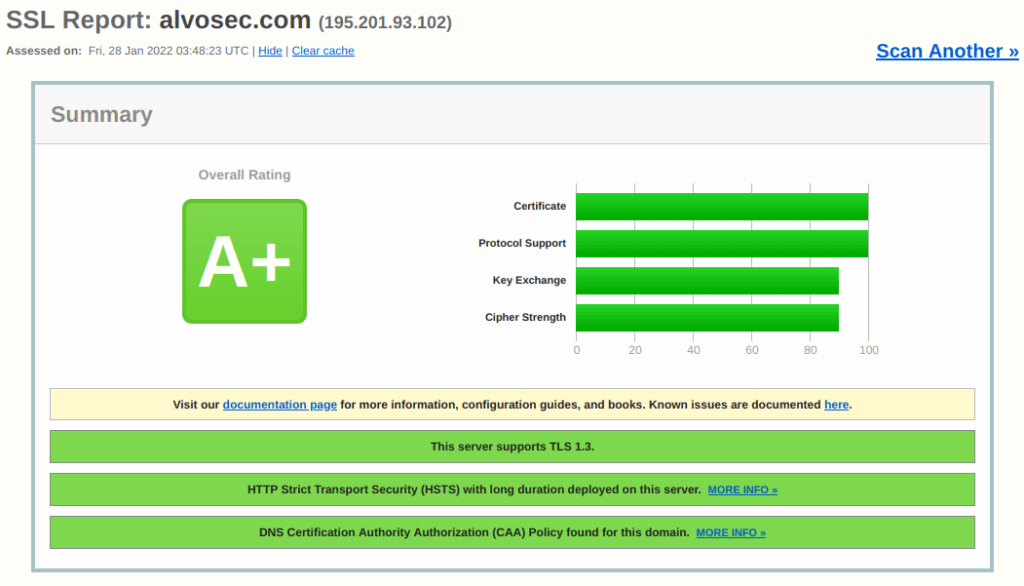
Use Current SSL/TLS Protocols (TLS 1.2 or 1.3)
SSLProtocol -all +TLSv1.3 +TLSv1.2Chose secure cipher suites:
SSLCipherSuite "ECDHE-ECDSA-AES256-GCM-SHA384:ECDHE-RSA-AES256-GCM-SHA384:ECDHE-ECDSA-CHACHA20-POLY1305:ECDHE-RSA-CHACHA20-POLY1305:ECDHE-ECDSA-AES128-GCM-SHA256:ECDHE-RSA-AES128-GCM-SHA256:ECDHE-ECDSA-AES256-SHA384:ECDHE-RSA-AES256-SHA384:DHE-RSA-AES256-GCM-SHA384"Always use HSTS:
Header always set Strict-Transport-Security "max-age=63072000; includeSubDomains; preload"You can check a suggestions from Cipherli.st or Mozilla Intermediate Ciphers Recommendation.